As you probably know, my family and I are in Mexico for a few weeks. Because we’re here for close to a month, I’m working full-time for part of our trip while my wife and kids enjoy the goodness that is the all-inclusive Sandos Playacar (we’ll be moving in a villa for the last 2 weeks on the 24th). This lead me to acquire a TelCel Amigo 3G USB stick (comes with 3GB of monthly bandwidth).
Since this is the only constant internet connection we’ll have throughout our stay, I wanted to be able to share the connection so that I can also connect via wifi for our iPhones (unlocked, also set with simple pay-as-you-go local SIMs, but no data) and my son’s netbook.
If you happen to be on OSX, doing so is absolutely dead-easy.
- Connect to the internet via your 3G connection
- Make sure Airport (wifi) is on
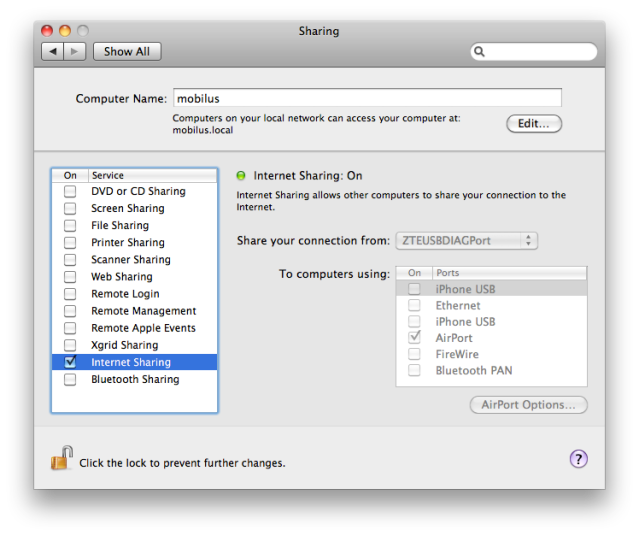
- Go to Systems Preferences → Sharing
- Select Internet Sharing
- Select your USB stick’s hardware from the list of ports in the “Share your connection from” section (see screenshot below)
- Check the “Airport” checkbox
- Set a network name and WEP password using the “Airport Options…” button
Tada! You should be all set and now be able to see your mac-as-an-access-point from any wifi-compatible devices. Enjoy! :)
Update: Had forgotten to attach the screenshot I mentioned. See below.
45.545447
-73.639076


