A comment over at OSNews mentioned someone having wished for more information than I provided in my previous post on installing Fedora Core 6 in Parallels Desktop.
So last night, thinking about how to accommodate the request, I could hardly picture more effective ways to do so than:
- to provide a series of screenshot of the setup and install process,
- and maybe even a ready-built VM image of the said install.
Well, you do know what’s coming right? :)
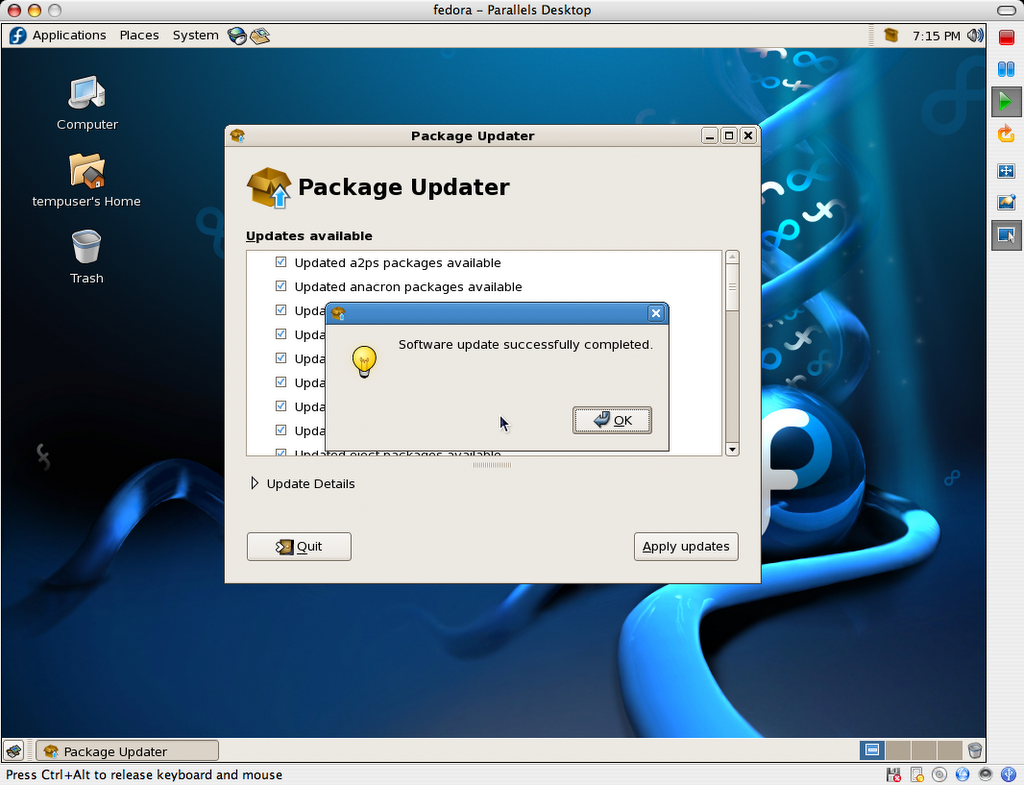
- FC6_Basic_For_Parallels_Desktop-Install_Screenshots.zip:
- http download (15.3MB)
- This package contains 67 PNG screenshots of the installation procedure. They show the complete process, from setting up the Parallels VM image to shutting down a freshly installed and updated copy of Fedora Core 6. Yes, I could have produced a screencast too, but I honestly don’t have the time these days, and someone else may do so using these very images, if so inclined. (update: I did after all)
- FC6_Basic_For_Parallels_Desktop-20061101.zip:
- http download (728.7MB)
- This is outcome of the install process shown in the above screenshots. It is fully ready to go, as long as you already have Parallels Desktop installed (licensed or demo). I simply compressed the folder as a zip file because I was able to output a file about 60-70MB smaller than even a compressed disk image (.dmg).
Here is a SHA1SUM of the above files.
Current hosting is generously provided by the McGill Linux Users Group, so please feel free to mirror, or create a torrent, and redistribute all of the present files. Until we have a new badly needed incarnation of the McLUG web site going, you can post your mirror addresses and/or torrent file download info right here, as comments. I will compile a list and add it to this file as (and if) they become available.
The VM package includes:
- fedora.pvs: Parallels Desktop config file
- fedora.hdd: 8GB virtual hard disk (auto-expanding, currently using 2.24GB)
- README.txt: helpful info, support terms (ie: zero, nada, ziltch :)
- Fedora Core 6 Install Screenshots: bundled install screenshots
- Fedora Mirrors.webloc: OS X bookmark for the official Fedora mirror list
- boot.iso: fedora boot disk used in original http install process
The install was completed on a Fall 2006 Apple MacBook (Intel Core Duo, 2GHz, 2GB RAM), and was also tested on a Fall 2006 20-inch iMac (Intel Core Duo, 2.16GHz, 2GB RAM).
Once you have Parallels Desktop for Mac installed, simply double-click or open fedora.pvs to get going.
Important: The root password is changeme, and the default user is setup as tempuser, with a password of changeme also.
This virtual machine is currently configured to use 512MB RAM. The VM’s default screen resolution is set to 1024×768. You can change any and all of its settings to your heart’s contempt.
Please note that this work is provided without support, and on a “works-for-me” basis only at this time.
So there you have it. Enjoy!
Update: I found a forum thread linking to more ready-to-go GNU/Linux images for Parallels Desktop: Ubuntu, Xunbuntu, etc.
Update 2: I’ve had to update the links to the download locations above to accommodate for a new VMWare image I’m also working on. You should update your links if you pointed to the image directly on your site or other (though I’d advise to point to this very page instead, since its location will not change).
Update 3: I now also have a VMWare FC6 image for download.
Update 4: I have produced a screencast from the above series of screenshots.
 tekArtist
Fantastic guys!! Thanks!BTW…go habs go!
LikeLike
cant wait to try this! THANKS!
LikeLike
Works like a charm with defaults.
LikeLike
I wish I could say it really worked for me, but for some reason the VM boots and then drops me into a linux log-on screen. How do I get it to fire up gnome? (I am obviously new at this…)
LikeLike
Same for me – command line – I can log in with tempuser / changeme but it stays in the commandline interface.How do I proceed?
LikeLike
Log in as root with changeme password. Type this in the terminal:startxThen will appear a message that says something about you already have a graphic session started. Then appears something like /tmp/.X0…Type this in the terminal:rm /tmp/.X0″…”Where /tmp/.X0… is the route that appears after the startx command. Then write exit and stop the VM. Start again and then it should work.
LikeLike
Yeah, I’ve now experienced the login prompt myself, occasionally.It seems to be an issue with X Windows either not focusing on the right console, or not starting up.- Try ctrl-opt f7 (and function on a macbook) to see if it’s just not focusing properly.- or login as tempuser/changeme, then type startx.- or follow dani’s advice above.- or it sometimes also just fixed itself on reboot of the vm, so just login and type rebootThis hadn’t showed up in my 3 or 4 reboot before I posted the image.
LikeLike
ctrl+opt+f7 did the trick for methanks
LikeLike
Wow! What a massive amount of good karma you have racked up by posting this! Thanks!
LikeLike
Is there an issue with networking on a macbook pro core 2 duo? Can’t seem to find ethernet…
LikeLike