The challenge
We use a cluster of GNU/Linux-powered nodes behind a Cisco load balancer to serve some of our web sites. These nodes being quasi-identical (most config, filesystems, etc), we often need to apply the very same changes, via ssh, to each of them at once in our daily maintenance tasks.
ClusterSSH to the Rescue
ClusterSSH is a small Perl/TK utility that controls a number of xterm windows via a single graphical console window to allow commands to be interactively run on multiple servers over an ssh connection. This means that you type your shell commands once, and they simultaneously run on all of the servers ClusterSSH is connected to.
 CusterSSH in action on Mac OS X (Tiger, MacBook)
A perfect fit for our needs, but not quite limited to our higher end environment. Using ClusterSSH, you can control x number of computers via ssh, whether they are exact replicas of one another (cluster) or not. This can be especially useful in a computer lab environment, or with any large number of similar systems that you want to edit from the command line.
EG: You can easily run softwareupdate on OS X or yum/apt on Linux, or even download a file from a central server, on all the computers in your office at once and without the need for more elaborate or expensive graphical solutions.
For the record, there is another project on SourceForge that shares the same purpose and executable name (cssh), but that project has not seen a release since 2004, unlike ClusterSSH, which seems to be kept rather well up-to-date by its developer(s).
But wait, we’re on OS X
ClusterSSH is an X11-based application, which Apple has been providing a port for OS X for years. But if you are on an Intel-based Mac, you might have been wondering where to find the said port for your architecture, since it is not an install option on the DVD provided with your new machine. Well, it is there, but the installer package is in fact in a directory hidden from the Finder.
To install Apple’s X11 built for your MacIntel, simply do the following:
- mount the DVD that came with your Mac
- open a terminal window
- type
open /Volumes/[OSX_DVD]/System/Installation/Packages/X11User.pkg where [OSX_DVD] is the volume name of the install DVD
- go through the newly launched installer
- tada!
Maybe Apple thought their Universal Binary version was only half-baked (…), at least until the latest update they released on November 13, which was itself Intel-ready. Should you choose not to install the latter, you will be prompted to update X11 the next time you run Software Update.
The Perl install that comes bundled with OS X lacks one of the modules that ClusterSSH relies on to provide a small GUI window for you to type your distributed commands in: Tk. Depending on when you read this (2006-11-21), you might want to run a CPAN search for a newer version than the one I link to.
Installing Tk is quite easy if you are familiar with the terminal, and requires for you to have installed the Developer Tools that came bundled with OS X.
- get the latest Perl/Tk module from CPAN
- decompress the downloaded archive
- important: open X11 (Applications » Utilities), and use its terminal for the next steps
cd to the Tk folderperl Makefile.PLmakemake testsudo make install- and you should be done
The make test step will procedurally try the miscellaneous X interface components that Perl/Tk provides, hence the need to run it in X11. All went fine in my context, but you can find more information on Steve Lidie‘s site at Lehigh University if needed: Perl/Tk and Mac OS X.
On to compiling ClusterSSH
Now that we have met ClusterSSH prerequisites (X11::Protocol is bundled with OS X), we can move on and compile the software for OSX.
- get the latest version of the source from the official site.
- decompress the downloaded archive
- in a terminal window,
cd to the clusterssh-* folder
./configuremakesudo make install
On many UNIX systems, you might now be able use the cssh command, but in OS X, you will probably need to make sure that your environment knows to look for software in /usr/local/bin by default, particularly in the terminal. To do so:
- go back to the terminal
- type
env
- see if
/usr/local/bin is part of the list making up the PATH variable
- if not type
export PATH=$PATH:/usr/local/bin then exit.
And that is essentially it…
Using ClusterSSH
Now that everything is installed, keep in mind that the purpose of this software is to run the same actions on a number of connected computers, which obviously has tremendous advantages, but also countless dangers.
Read every command before running them, and make sure you did not accidentally or temporarily shifted the window focus to one of the nodes, therefore processing your request one one of the hosts only.
Before you start using cssh, make sure to have a user with the same username and password combination on all of the targeted hosts, unless you opted to pass some of these parameters in the individual connection strings.
Then, in an X11 terminal window, use the cssh command as illustrated below:
cssh user@your.host.1 user@your.host.2 user@your.host.3 [...]
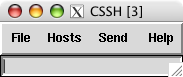
 When all of the windows are launched, be sure to put t
he focus on the small window (see right) and type your commands. In most cases, this will mean starting by typing your password to the computers your are connecting to. And then, you’re off to the races.
You can take some steps to make your time with ClusterSSH easier, such as using ssh keys to forgo having to type a password altogether (think about security though). You can also write a small shell script already containing the full list of nodes you are most often connecting to.
I have successfully tested ClusterSSH on Mac OS X 10.4.x (Tiger) on:
For more information you can now use man /usr/local/man/man1/cssh.1 in the terminal to see the full cssh documentation, or see the online FAQ.
But please, do keep reminding yourself that the old “rm -rf ~/*” cliché is multiplied by the number of hosts you are connected to. ;)
Enjoy.
Update 1: a comment attached to this post led me to a similar tool that has its own advantages, and is well worth mentioning here: dsh.
Update 2: for those of us also running GNU/Linux, ClusterSSH is also available as a pre-compiled Debian package and Fedora RPM.


 tekArtist